Content
Overview
Type-H1 is a chibi-style Live2D model designed for flexible character customization and expressive streaming use cases.
Required Software
To use the Live2D model, use any software that supports Live2D Cubism SDK 5.0 / Cubism 5.0 models. VTube Studio is the primary tested application, and a basic VTube Studio setup file is included. For expanded tracking, VBridger is recommended. If you are using a differnet software, please consult the software's documentation on how to setup the model.
Limitation
Each customizable model includes a defined set of parts and combinations, so not every character design can be recreated exactly. Some users may accept a similar hairstyle or outfit, while others may require every detail to match. Please review the model's customization parameter list and decide whether the available options meet your expectations. The model creator cannot make this subjective assessment for you.
Advanced edits (such as drawing new parts on textures) are possible, but they require image-editing and illustration experience.
Do not assume features from other customizable models are available here, since each model creator defines a different customization system.
File List
| Quantity | File | Category | Description |
|---|---|---|---|
| 1 | Type-H1\Type-H1.moc3 | Live2D Runtime | Model file |
| 1 | Type-H1\Type-H1.model3.json | Live2D Runtime | Model linking file |
| 1 | Type-H1\Type-H1.cdi3.json | Live2D Runtime | Parameter names |
| 1 | Type-H1\Type-H1.physics3.json | Live2D Runtime | Physics settings |
| 3 | Type-H1\Type-H1.4096\*.png | Live2D Runtime | Texture files |
| 2 | Type-H1\Motions\*.motion3.json | Live2D Runtime | Animation files |
| 79 | Type-H1\Expressions\*.exp3.json | Live2D Runtime | Expression files |
| 1 | Type-H1\Type-H1.vtube.json | VTube Studio | VTube Studio model setup file |
| 1 | Type-H1\icon.png | VTube Studio | Model icon |
| 1 | LICENSE.txt | Documentation | License agreement |
| 1 | 许可协议.txt | Documentation | License agreement (Chinese) |
| 9 | Sample Characters | Other | Preset characters |
Functional Toggle
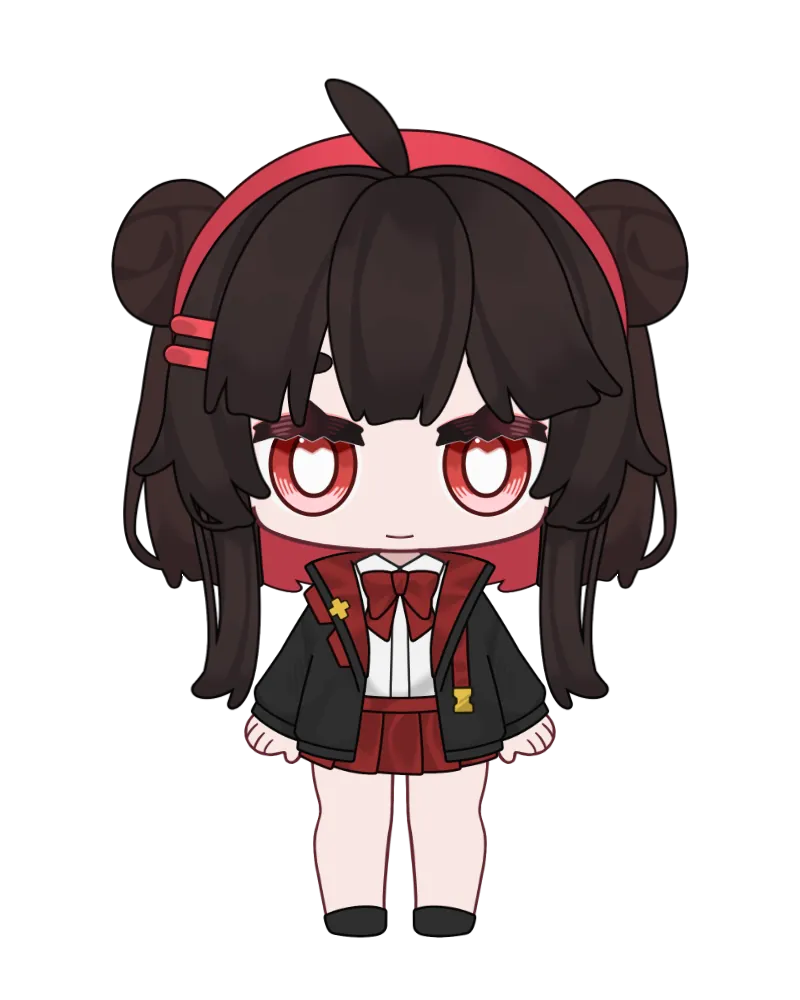
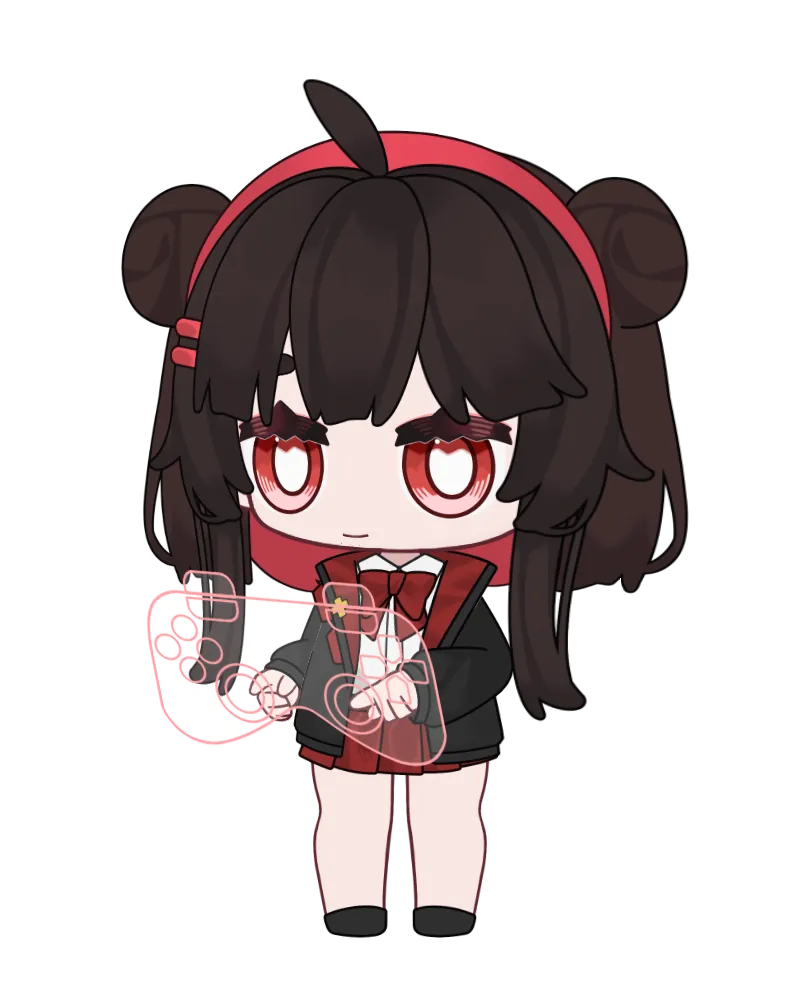
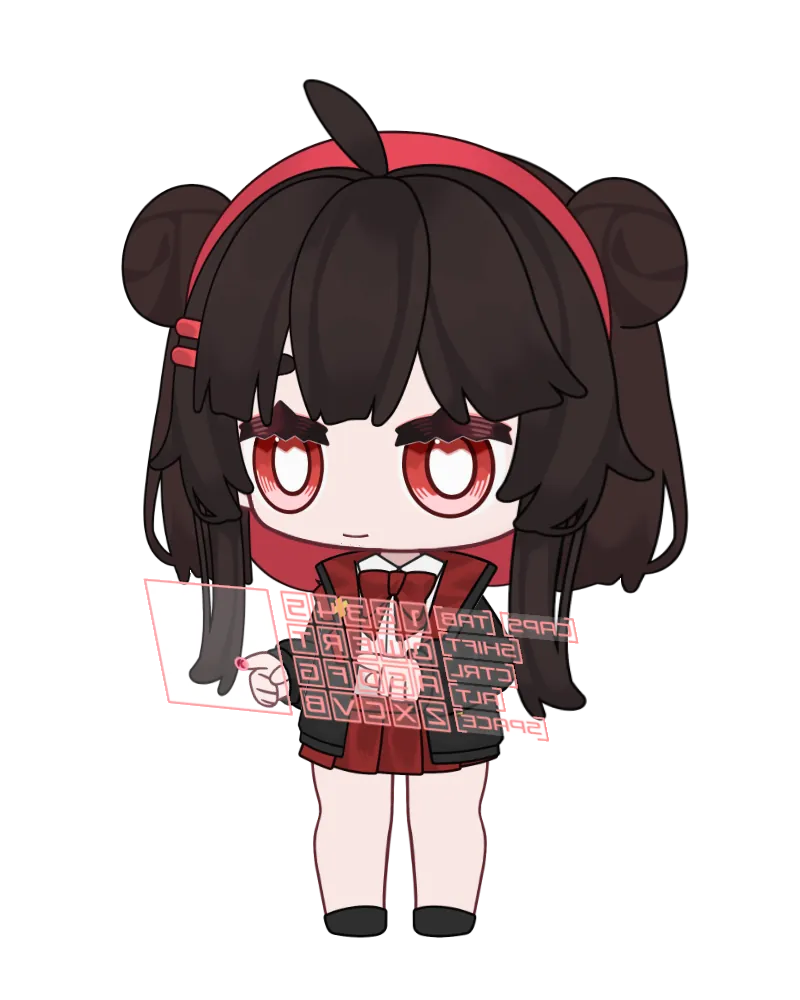
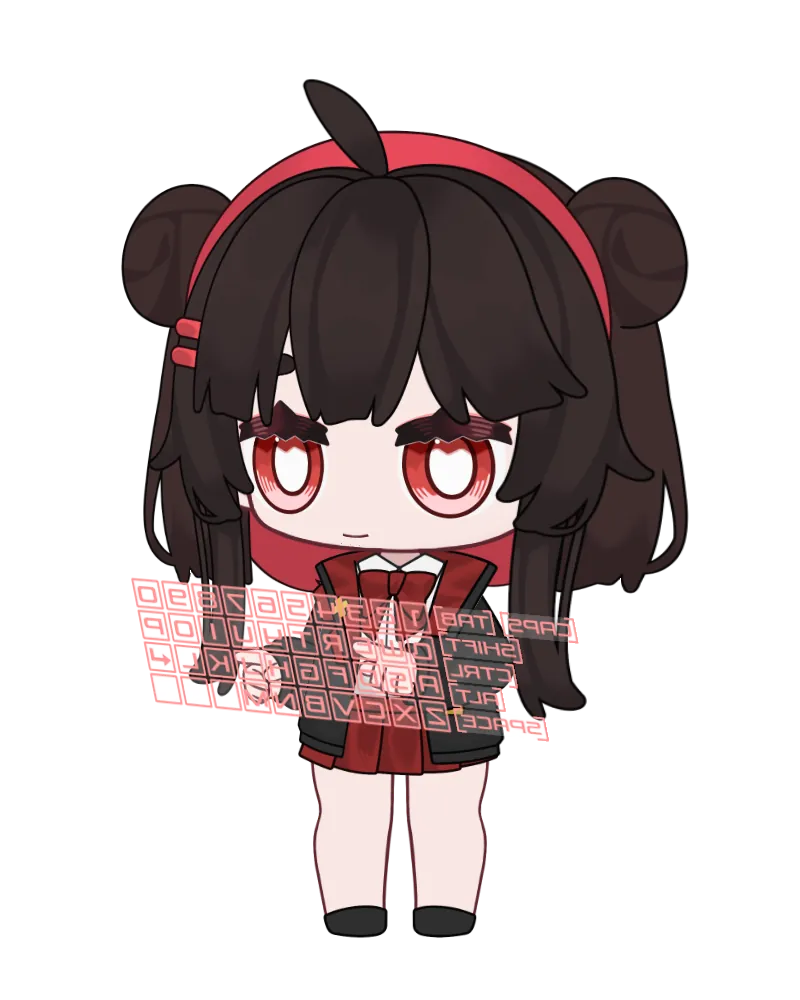
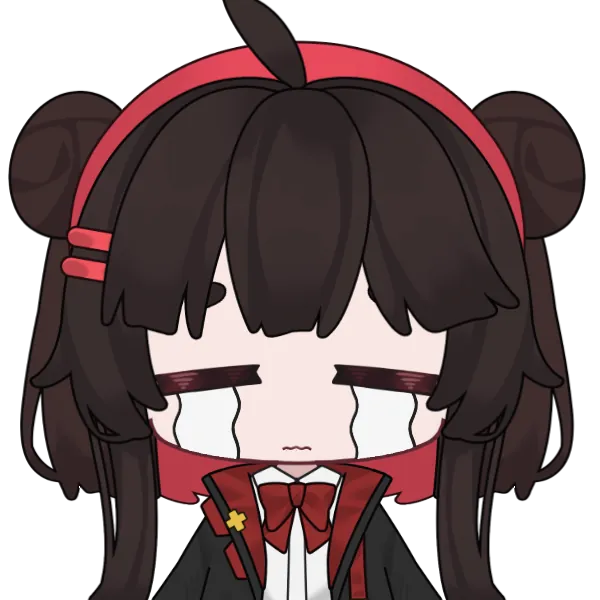
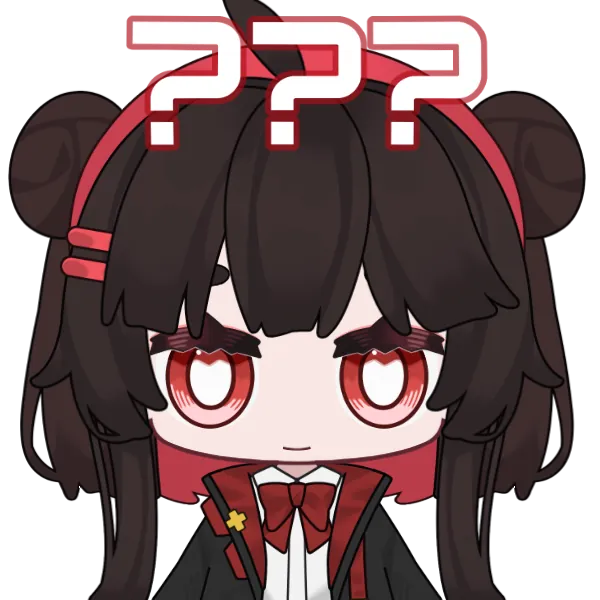
Expression Toggle
If you do not like the preset parameter combination for an expression, you can edit an existing expression or create a new one in the Expression Editor in VTube Studio or Live2D Cubism Viewer.


















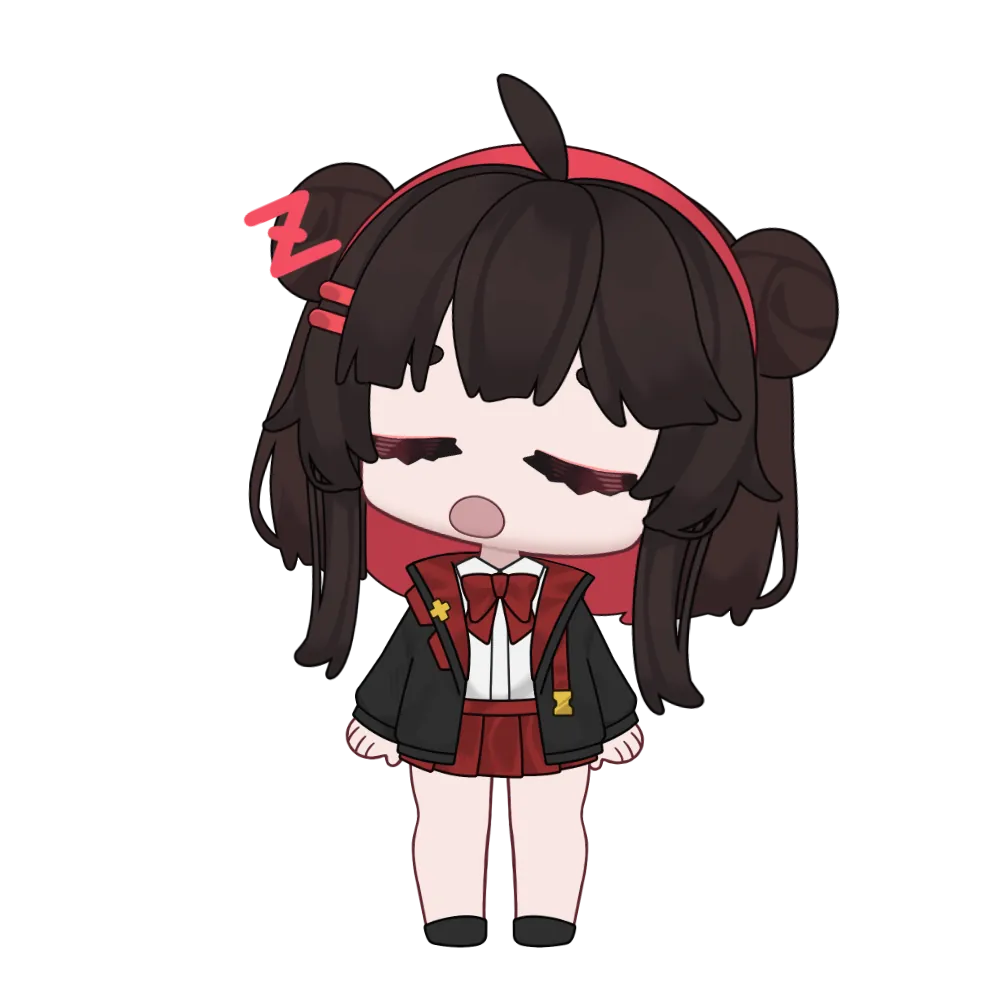
Idle Animation
Tracking Parameter
You do not need every input parameter to receive data for tracking to work. In VTube Studio, some extended inputs may appear red when no tracker supplies them; the model still works with default face tracking (basic eye, mouth, head, and body motion).
For example, with a webcam tracker, MouthX usually has no input. That is a limitation of webcam tracking. The mouth will not shift horizontally, but it will still smile and open because MouthSmile and MouthOpen are supported by most trackers.
Controller Mode uses VTube Studio’s native controller tracking inputs. Select a controller in the Controller Widget; no third-party plugin is required.
For all available parameters, please refer to the official VTube Studio manual. Some plugins allow the user to add their own parameters to the tracking.
| Parameter | Type | Mapping / Requirement |
|---|---|---|
| Face Left/Right Rotation | Face Tracking | Bind to FaceAngleX |
| Face Up/Down Rotation | Face Tracking | Bind to FaceAngleY |
| Face Lean Rotation | Face Tracking | Bind to FaceAngleZ |
| Body Rotation X | Face Tracking | Bind to FaceAngleX |
| BodyPositionX | Face Tracking | Bind to FacePositionX |
| BodyPositionY | Face Tracking | Bind to FaceAngleY |
| Auto Breath | Face Tracking | Auto-breathing |
| Eye Open Left | Face Tracking | Bind to EyeOpenLeft |
| Eye Open Right | Face Tracking | Bind to EyeOpenRight |
| Eye Smile Left | Face Tracking | Bind to MouthSmile |
| Eye Smile Right | Face Tracking | Bind to MouthSmile |
| Eye X | Face Tracking | Bind to EyeRightX |
| Eye Y | Face Tracking | Bind to EyeRightY |
| Brow Height Left | Face Tracking | Bind to BrowLeftY |
| Brow Height Right | Face Tracking | Bind to BrowRightY |
| Brow Form Left | Face Tracking | Bind to MouthSmile |
| Brow Form Right | Face Tracking | Bind to MouthSmile |
| BrowAngleL | Face Tracking | Requires VBridger; bind to BrowAngleL |
| BrowAngleR | Face Tracking | Requires VBridger; bind to BrowAngleR |
| Mouth Smile | Face Tracking | Bind to MouthSmile |
| Mouth Open | Face Tracking | Bind to MouthOpen |
| MouthX | Face Tracking | Requires iOS tracking; bind to MouthX |
| MouthPuckerWiden | Face Tracking | Requires VBridger; bind to MouthWiden |
| MouthShrug | Face Tracking | Requires VBridger; bind to MouthShrug |
| JawOpen | Face Tracking | Requires iOS tracking or VBridger; bind to JawOpen |
| CheckPuff | Face Tracking | Requires iOS tracking; bind to CheekPuff |
| VoiceSilence | Face Tracking | Bind to VoiceSilence |
| VoiceA | Face Tracking | Bind to VoiceA |
| VoiceE | Face Tracking | Bind to VoiceE |
| VoiceI | Face Tracking | Bind to VoiceI |
| VoiceO | Face Tracking | Bind to VoiceO |
| VoiceU | Face Tracking | Bind to VoiceU |
| MouseX | Mouse Tracking | Bind to MousePositionX |
| MouseY | Mouse Tracking | Bind to MousePositionY |
| LStickX | Controller Tracking | Bind to ControllerStickLeftX |
| LStickY | Controller Tracking | Bind to ControllerStickLeftY |
| LStickON | Controller Tracking | Bind to ControllerThumbPosLeft |
| LSButton | Controller Tracking | Bind to ControllerStickPressLeft |
| LB | Controller Tracking | Bind to ControllerShoulderLeft |
| LT | Controller Tracking | Bind to ControllerTriggerLeft |
| LButton_UP | Controller Tracking | Bind to ControllerDPadY (up direction) |
| LButton_DOWN | Controller Tracking | Bind to ControllerDPadY (down direction) |
| LButton_LEFT | Controller Tracking | Bind to ControllerDPadX (left direction) |
| Lbutton_RIGHT | Controller Tracking | Bind to ControllerDPadX (right direction) |
| RStickX | Controller Tracking | Bind to ControllerStickRightX |
| RStickY | Controller Tracking | Bind to ControllerStickRightY |
| RStickON | Controller Tracking | Bind to ControllerThumbPosRight |
| RSButton | Controller Tracking | Bind to ControllerStickPressRight |
| RB | Controller Tracking | Bind to ControllerShoulderRight |
| RT | Controller Tracking | Bind to ControllerTriggerRight |
| RButton_UP | Controller Tracking | Bind to ControllerTriangle |
| RButton_DOWN | Controller Tracking | Bind to ControllerCross |
| RButton_LEFT | Controller Tracking | Bind to ControllerSquare |
| RButton_RIGHT | Controller Tracking | Bind to ControllerCircle |
Default Key Bindings
The default key bindings can be changed based on your own preferences in VTube Studio. See Hotkey Settings (Toggles) for more details.
Keyboard Mode also uses per-key expression hotkeys (KeyA–KeyZ, number keys, modifiers, and mouse buttons) to drive hand animations. Those bindings are in the Function folder in VTube Studio and should not be removed or edited.
| Category | Expression / Function | Default Hotkey |
|---|---|---|
| Tracking Mode | Default Mode | N/A |
| Tracking Mode | Controller Mode | Alt+C |
| Tracking Mode | Half Keyboard Mode | Alt+K+H |
| Tracking Mode | Full Keyboard Mode | Alt+K+F |
| Function | Reload Texture | LeftShift+R |
| Expression Toggle | Angry | LeftShift+1 |
| Expression Toggle | Blush | LeftShift+2 |
| Expression Toggle | Glasses | LeftShift+3 |
| Expression Toggle | Loading | LeftShift+4 |
| Expression Toggle | Question | LeftShift+5 |
| Expression Toggle | Sigh | LeftShift+6 |
| Expression Toggle | Star | LeftShift+7 |
| Expression Toggle | Idea | LeftShift+8 |
| Expression Toggle | Sweating | LeftShift+9 |
| Expression Toggle | Mic | LeftShift+M |
| Expression Toggle | EyeDark1 | E+1 |
| Expression Toggle | EyeDark2 | E+2 |
| Expression Toggle | EyeDizzy | E+3 |
| Expression Toggle | EyeDollar | E+4 |
| Expression Toggle | EyeHeart | E+5 |
| Expression Toggle | EyeOO | E+6 |
| Expression Toggle | EyeStar | E+7 |
| Expression Toggle | EyeTear | E+8 |
| Expression Toggle | EyeTT1 | E+9 |
| Expression Toggle | EyeTT2 | E+0 |
| Preset | Preset0x | NUM0 |
| Preset | Preset1 | NUM1 |
| Preset | Preset2 | NUM2 |
| Preset | Preset3 | NUM3 |
| Preset | Preset4 | NUM4 |
| Preset | Preset5 | NUM5 |
| Preset | Preset6 | NUM6 |
| Preset | Preset7 | NUM7 |
| Preset | Preset8 | NUM8 |